How to Test Skins in CS2

Skins in CS2 have already turned into a form of modern digital currency, since many players purchase them as investments. At the same time, you can also buy these cosmetic items simply to customize your favorite weapon or show off a new knife when playing with friends.
Regardless of the reason behind your purchase, it’s important to know how to test skins in CS2. This way, you can make sure you actually like the weapon or knife you plan to buy, especially when the price exceeds a hundred dollars. Our guide will walk you through all the ways to preview skins before spending your money. We’ll also cover the key factors you should consider when you inspect these cosmetic items.
Why Test Skins in CS2 Before Buying?
Before learning how to try skins in CS2, let’s go through the main reasons why testing them before you make a purchase is important:
- Visual preference: It can be difficult to tell whether you’ll truly like the skin by only looking at screenshots from the game online.
- Special factors: Most CS2 skins feature pattern seeds, which directly affect how the image is placed on the weapon. In addition, a skin's float value significantly influences its appearance in Counter-Strike 2. Only by inspecting it in-game can you fully understand what you’re actually paying for.
- Sticker placement: Not only do float values and pattern seeds affect a skin’s appearance and price, but stickers also play a major role. In some cases, they indeed create truly unique and attractive combination patterns. However, there’s always a chance of buying a skin with awkward stickers placement, so if you want to avoid disappointment, you should inspect everything carefully beforehand.
Do you want to customize your weapons but don’t know which cosmetic items to choose? It’s a good idea to browse the Steam Community and Reddit for inspiration. And don’t forget to check out lists of the best CS2 weapon skins to discover the most attractive options for your inventory.
Inspecting CS2 Skins via Steam Market
First, let’s find out how to try out skins in CS2 without spending too much time. The easiest way is to use the Steam Community Market and search for the cosmetic item you want. Make sure Counter-Strike 2 is installed on your computer, then follow these simple steps:
Open the Steam Community Market in your browser.
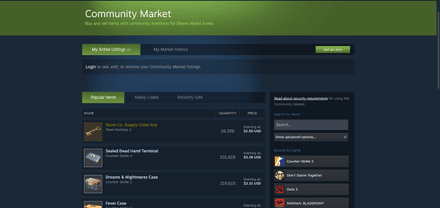
- Select Counter-Strike 2 in the right corner.
Browse available listings or enter the skin name to simplify your search.
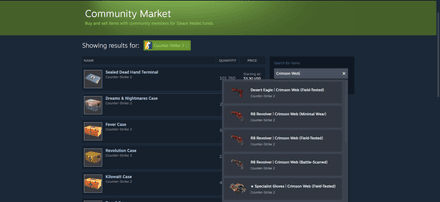
Open the skin’s page and scroll down to the bottom, where you’ll see all available offers. There, click the “Inspect in Game” button.
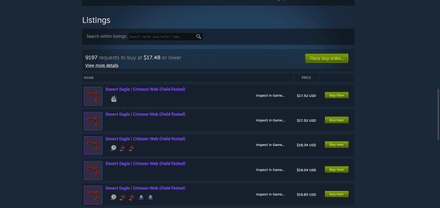
- Once you do this, Steam will automatically launch CS2 for the inspection. In this preview mode, you can rotate the weapon, zoom in to inspect details, check the wear pattern, and examine the stickers placement.


This is the fastest way to inspect a skin because it doesn’t require joining special servers or downloading third-party tools. However, it also has a few drawbacks:
- You can’t see how the skin looks under different map lighting conditions on various maps.
- You can’t test animation, which is especially important for knives.
- You can’t see whether the skin matches your other cosmetics, such as gloves or agent skins.
Testing CS2 Skins on Community Inspection Servers
Now, let’s find out how to test skins in the CS2 server. This is one of the best ways to inspect a future purchase because it allows you to experience the skin as if you were actually using it in-game. With this method, you can move around, shoot, inspect the weapon, and see how it looks under different lighting conditions. Here are detailed instructions on how to enter an inspection server and use it:
- Find an inspection server through the Community Server Browser. Alternatively, you can use platforms like CSFloat, which provide direct access to inspection servers through their websites.
- Use the following commands and start the inspection:
Console Command | Description |
!i [inspect link] | The command spawns any existing skin using a Steam inspect link copied from a market listing. Simply paste it into the server chat, and the weapon or knife will instantly appear in your hands. |
!gen [code] | This command generates a custom skin using services like CS2inspects.com or csinspect.com. Copy the generated code and use it with the command. |
Previewing CS2 Skins in Workshop Maps
Do you want to know not only how to try skins in game CS2, but also how to create beautiful screenshots of the weapons in your inventory? In that case, you can download a special Workshop map designed for skin previews and screenshots. Here’s how to do it:
Open the Steam Workshop and subscribe to a skin inspection map. For example, you can download Inspect Skins. This map includes more than 100 unique backgrounds, a detailed island room, and customizable skybox lighting. It also provides six post-processing filters to make your screenshots look even better. In addition, the map’s creator offers access to a community server where you can test almost any skin from the market.
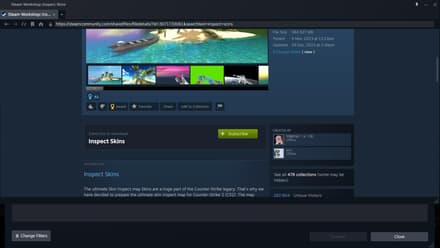
- Launch Counter-Strike 2 and open the downloaded map through the Workshop Maps menu.
Use the custom tools to experiment with lighting conditions and backgrounds.
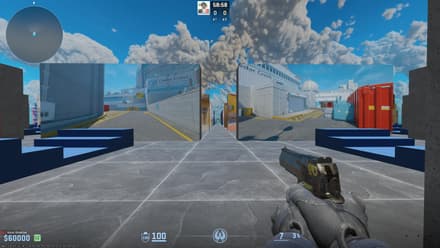


Keep in mind that Workshop maps do not include additional skins by default. If you play solo, you’ll only be able to inspect the skins already in your inventory. Alternatively, you can invite a friend and use special commands to share weapons or knives for inspection.
Key Factors to Check When Inspecting CS2 Skins
Now you know how to try CS2 skins in game using official methods. However, it’s equally important to understand how to estimate the real value of an item. Even if you find a skin that perfectly matches your preferences, there’s always a risk of overpaying or getting scammed by dishonest traders.
Here are the key factors you should evaluate when inspecting the true value of a weapon or knife:
- Pattern seeds: Case-Hardened, Marble Fade, Fade, and several other skins feature not only float but also pattern seeds. A pattern seed is a random number from 1 to 999 that determines how the texture is applied to the weapon. As a rule, pattern seeds are usually grouped into tiers. Some of them add no extra value, while others can increase a skin’s price by hundreds or even thousands of dollars. Thus, if you want to buy one of these skins, you definitely need to inspect it before the purchase to make sure you’re getting exactly what you paid for.
- Stickers: When reviewing stickers, you should pay close attention to their overall condition and placement. There are entire guides dedicated to matching different stickers with specific skins, and if the weapon’s owner followed those combinations, you may end up with an excellent weapon for your collection. On the other hand, the situation may be completely different if a trader randomly applied stickers just to artificially increase the skin’s price.
- Animations: This is a factor to consider only when purchasing knives. Each knife type has its own unique pull-out, attack, and inspect animations. Before buying a knife, it’s a good idea to make sure you actually like how your character uses it in-game. Luckily, you can test every knife type by entering Practice Mode on any map. Simply enable the Developer Console, turn on Cheat mode, and use the appropriate commands to spawn different knives (not skins).
- Float values: Most weapons in CS2 fall into five float categories, ranging from Factory New (perfect condition) to Battle-Scarred (heavily worn condition). However, that doesn’t necessarily mean that Battle-Scarred skins are always cheaper than Factory New ones. Everything depends on the specific skin, since some Battle-Scarred versions reveal unique hidden patterns or details beneath the paint, increasing the weapon’s value.
- StatTrak: These cosmetic items feature a built-in digital counter that tracks the number of kills made with the weapon while the StatTrak skin is equipped. As a rule, StatTrak skins are considered more prestigious and rarer than standard versions, which is why they are usually significantly more expensive. Players often choose StatTrak to showcase their dedication to a specific weapon.
- Souvenir: These are exclusive yellow-quality skins typically associated with CS2 eSports events, especially Major Championships. Keep in mind that Souvenir skins cannot be used in trade-up contracts, so if you see someone claiming otherwise, it’s most likely a scam.
- Families: Finally, some cosmetic items become more valuable if they belong to a popular family, such as Crimson Web or CS2 Anubis collection. Owning multiple skins from the same family allows you to create a stylish and visually consistent loadout to show off during matches.
Conclusion
Now you know how to test out skins in CS2 without violating Valve’s rules or risking a VAC ban. Keep in mind that the best inspection method depends entirely on the purpose of your purchase. If you’re buying a relatively cheap skin, Steam Market's built-in preview feature may be enough. However, if you’re planning an expensive purchase, you should carefully inspect every detail using both community inspection servers and in-game previews.
FAQ
No, using third-party software that modifies the game’s files can trigger Valve’s anti-cheat systems and may result in a VAC ban. However, if you want to learn how to test CS2 skins in game using a safe method, you should use the trusted inspection servers provided by reputable trading platforms.
No, skin inspection in Counter-Strike 2 has absolutely no impact on your Steam inventory or market history. Whether you inspect weapons from your own inventory, the Steam Community Market, or third-party trading platforms, it remains purely a cosmetic preview and does not affect ownership, value, or trade status.
Yes. Many third-party trading platforms provide 3D previews that allow you to inspect skins directly on your mobile phone. These tools let you rotate weapons, zoom in on details, and experiment with different skin float values without launching the game. They can also be used on PC.
If you wonder how to test skins in the CS2 game to review your friend’s inventory, you can do it directly through Steam Inventory:
- Open your friend’s Steam profile, click the “Inventory” tab, and select “Counter-Strike 2.”
- Find the skin you want to inspect and click the “Inspect in Game” button.