CS2 Console Commands
All Console Commands
On sv_cheats 1
Off sv_cheats 0
Cash/Money.
Autosave
AutoSaveDangerous
Restarts bug reporter .dll
Record a demo incrementally.
Erases current game stats and writes out a blank stats file
Shutdown and restart the engine.
Default: 0
Turn on achievement debug msgs. Requires sv_cheats 1
Default: 0
Turn off achievements. Requires sv_cheats 1
Add an IP address to the ban list.
Default: 0
cs_agency
Clears bits set on nav links indicating link is unusable
Default: 0
NPC Line-Of-Sight debug mode. If 1, solid entities that block NPC LOC will be highlighted with white bounding boxes. If 2, it'll show non-solid entities that would do it if they were solid. Requires sv_cheats 1
Debug the attempted connection between two nodes
Default: 0
Requires sv_cheats 1
Command for the "sv_cheats 1" mode. Bots will only perform idle actions.
Default: 0
Requires sv_cheats 1
Drop an ai_hint at the player's current eye position.
Requires sv_cheats 1
Controls which connections are shown when ai_show_hull or ai_show_connect commands are used
Arguments: NPC name or classname, =NPC under crosshair Requires sv_cheats 1
Cycles through the various hull sizes. Currently selected hull size is written to the screen. Controls which connections are shown when ai_show_hull or ai_show_connect commands are used
Arguments: -none- Requires sv_cheats 1
Toggles node display. First call displays the nodes for the given network as green objects. Second call displays the nodes and their IDs. Nodes are color coded as follows:
Green - ground node Cyan - air node Magenta - climb node Grey - node not available for selected hull size Orange - node currently locked Requires sv_cheats 1
Default: 0
If NPC is stepping through tasks (see ai_step ) will resume normal processing.
Requires sv_cheats 1
Set how high AI bumps up ground walkers when checking steps
Like ai_disable but you manually specify the state (with a 0 or 1) instead of toggling it.
Requires sv_cheats 1
Displays the allowed connections between each node for the currently selected hull type. Hulls are color code as follows:
Green - ground movement Blue - jumping movement Cyan - flying movement Yellow - crawling movement Magenta - climbing movement Red - connection disabled Requires sv_cheats 1
Displays the allowed connections between each node for the currently selected hull type. Hulls are color code as follows:
Green - ground movement Blue - jumping movement Cyan - flying movement Yellow - crawling movement Magenta - climbing movement Red - connection disabled Requires sv_cheats 1
Displays the allowed connections between each node for the currently selected hull type. Hulls are color code as follows:
Green - ground movement Blue - jumping movement Cyan - flying movement Yellow - crawling movement Magenta - climbing movement Red - connection disabled Requires sv_cheats 1
Displays the allowed connections between each node for the currently selected hull type. Hulls are color code as follows:
Green - ground movement Blue - jumping movement Cyan - flying movement Yellow - crawling movement Magenta - climbing movement Red - connection disabled Requires sv_cheats 1
Toggles graph connection display for the node that the player is looking at. Nodes that are connected to the selected node by the net graph will be drawn in red with magenta lines connecting to the selected node. Nodes that are not connected via the net graph from the selected node will be drawn in blue.
Requires sv_cheats 1
Draw a grid on the floor where looking.
Requires sv_cheats 1
Displays all hints as small boxes
Blue - hint is available for use Red - hint is currently being used by an NPC Orange - hint not being used by timed out Grey - hint has been disabled Requires sv_cheats 1
Displays the allowed hulls between each node for the currently selected hull type. Hulls are color code as follows:
Green - ground movement Blue - jumping movement Cyan - flying movement Yellow - crawling movement Magenta - climbing movement Arguments: -none- Requires sv_cheats 1
Highlight the specified node
Requires sv_cheats 1
Modified in v1.34.6.6
Toggles visibility display for the node that the player is looking at. Nodes that are visible from the selected node will be drawn in red with yellow lines connecting to the selected node. Nodes that are not visible from the selected node will be drawn in blue.
Requires sv_cheats 1
NPCs will freeze after completing their current task. To complete the next task, use 'ai_step' again. To resume processing normally use 'ai_resume'
Requires sv_cheats 1
Commands List
Why are Console Commands Needed in CS2?
Console commands in CS2 allow players to instantly activate changes or settings in the game. All you need to do is open the console, type the command you need, and press the Enter key. The whole process takes about as long as it takes to read this sentence.
However, despite the presence of 3,057 CS2 commands available through the console, most important settings can already be adjusted through the game’s main menu. All basic aspects needed for comfortable gameplay — Video, Audio, Game, Keyboard/Mouse, Controller — can be configured without touching the console. Still, the console is extremely useful if you want to copy and paste someone else’s entire settings list instead of adjusting every option manually.
There is also a large set of commands that are essential for training. These include commands for adding bots and controlling them, activating infinite armor, adjusting grenade trajectories, and more. Alternatively, you can use them just for fun with friends when you are tired of competitive matches and want to try something chaotic.
Including all CS2 console commands directly in the main settings menu would waste a huge amount of space and make the interface less user-friendly. For this reason, the developers kept these options available but effectively "hid" them inside the console. Advanced players often know around a hundred commands from the full CS2 commands list, but even that only scratches the surface. To make things easier, we’ve grouped the commands into categories so you can quickly find the one you need.
How to Open and Use the CS2 Console
In CS2 all commands are activated through the console. But how do you open it?
When in CS2:
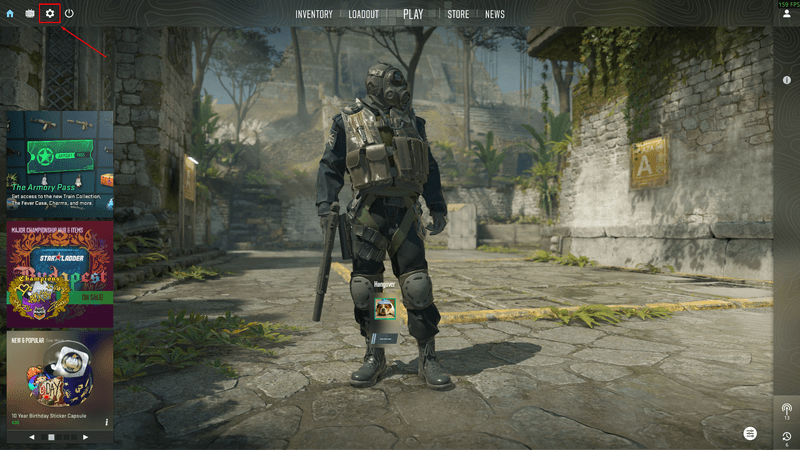
Open the game and click the gear icon in the main menu.
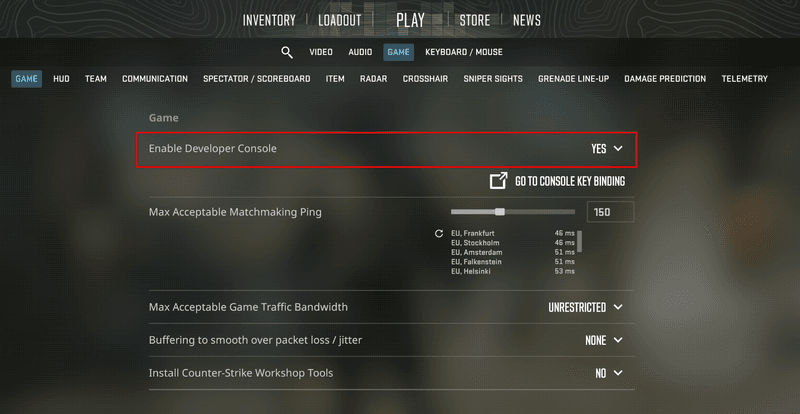
- Go to the Game tab.
Find Enable/Allow Developer Console and set it to Yes/Enabled.
In-game, press the ` or the ~ key (usually the tilde key) to open the console.
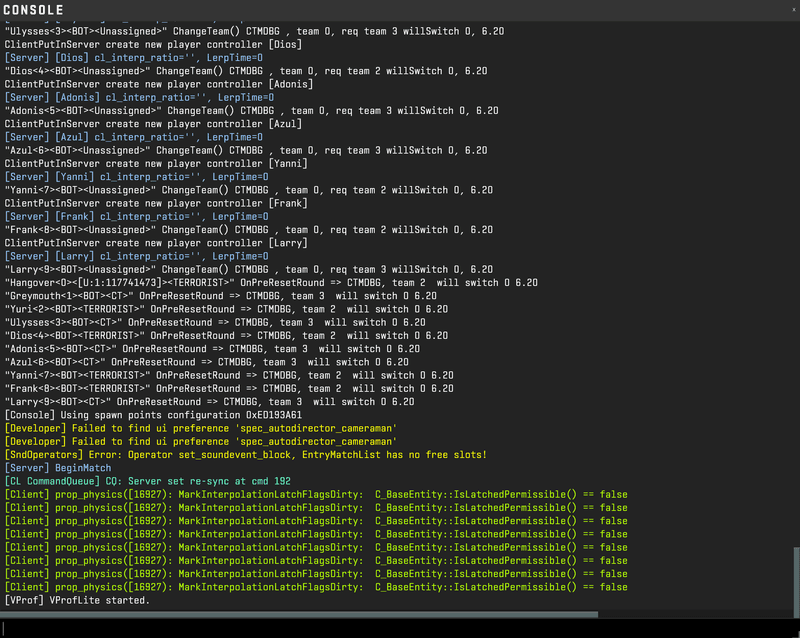


Boom! You are ready to go.
Now, whenever you open CS2 all console commands can be entered from this window that appears after pressing the tilde key. So go ahead and explore the CS2 console commands list we’ve prepared for you.
What Commands Cannot Be Used in Competitive Modes
With the variety of Counter-Strike 2 console commands, most of them function as pre-game configuration settings. Essentially, all CS2 commands that mirror configuration settings can be used at any time.
However, a large group of commands is available only during training sessions. To activate them, you must type sv_cheats 1 in the console. This unlocks commands that are not allowed in competitive modes. These include features such as flying across the map, god mode, infinite ammo, closest spawn to test timings, grenade trajectory previews, and many more, all of which can be extremely useful for practice.
Another group of commands cannot be used in competitive matches because they modify local server settings. For example, you cannot change freeze time, round time, team sizes, or starting money while playing official matchmaking games.
FAQ
Some CS2 console commands may not work because they were removed, renamed, restricted to specific modes, or require special permissions, such as cheat-enabled servers. In some cases, the issue may simply be a typing mistake or an incorrect parameter.
The classic FPS command is cl_showfps 1, which displays a simple frame rate counter on your screen. Another option is cq_netgraph 1, which shows additional performance and network statistics, though it functions more as a HUD-style stat display rather than a basic FPS counter. For a more detailed dashboard, Valve also provides the Source2 Telemetry HUD, which can be enabled in the Game settings. There, you can choose which performance metrics you want to display on your screen.
To activate the console in CS2, follow this procedure: Launch Game → Settings → Game → Enable Developer Console → Yes. Then, press the “~” (tilde) key to open the console and enter commands.
In most cases, you cancel a command by entering the opposite value. Many commands use ‘1’ for activation and ‘0’ for deactivation. For example, sv_cheats 1 enables 'cheat' commands, while sv_cheats 0 disables them. In other cases, you may need to use an opposite command, such as bot_add/bot_kick.
The most commonly used commands are related to adjusting game volume levels, mouse sensitivity, and key binds. Many players modify these settings frequently, sometimes several times within a single match.
Console commands do not directly improve your skill, but they can definitely make the gameplay experience smoother and more comfortable. Optimizing your settings may help you react faster and perform better during matches.
Profilerr Tools
Pro Players’ Settings