Voice Enable Command in CS2

In-game communication is critical if you plan to achieve anything in Counter-Strike 2. The game’s developers recognized this and added expansive voice chat settings you can customize to your liking. However, sometimes they are still not enough. In such cases, using console tools like the CS2 voice enable command is your best bet. With a couple of simple console commands, you can fine-tune your voice chat settings to perfection.
Our guide will help you become better at managing in-game communications via the Developer Console. We’ll go through the whole process step-by-step and explain how to get the most out of popular console commands and fix common software issues.
What the CS2 Voice Enable Command Does
The voice enable command in CS2 activates or deactivates voice communication in the game. Players often configure it alongside other commands and settings to make their games easier to control. For example, if someone’s mic malfunctions and starts to scream static into the chat, you can disable it by pressing a single key.
Like many similar console commands, this one has two possible values:
voice_modenable 1— It enables voice chat. If you still can’t hear your teammates after executing this command, your microphone or audio devices are likely not configured properly or not connected to your PC.voice_modenable 0— It disables voice chat. When this value is used, you won’t be able to hear or talk to your teammates. You can usevoice_modenable 0to temporarily stop listening to toxic players and focus on the game, without muting the system or completely turning off your audio.
How to Use the CS2 Voice Enable Command in the Console
Using the voice command in CS2 requires activating the Developer Console, so let’s get into it! But before we start, you can check the best CS2 audio settings to get an idea of what configuration to go for.
Step 1: Turn on the Developer Console
Regardless of the command you want to use, you need to turn on the Developer Console. Here’s how to do it:
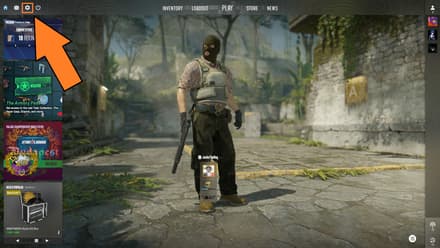
Enter the game and click the Settings (Gear icon) in the top left of the Main Menu.
Go to the “Game” tab and click “Yes” in the “Enable Developer Console (~)”.
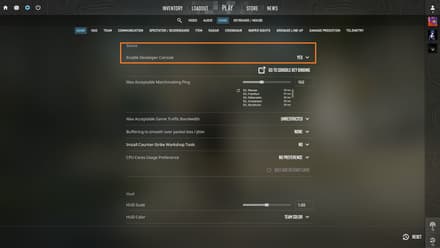
- Once enabled, you can open the Developer Console from the Main Menu or during a match by pressing the tilde (~) key.


Step 2: Execute the CS2 Voice Enable Command
If you want to make sure that the command works properly, it’s best to test it during a match. Do the following once you’re in-game (it can be any official game mode):
- Press the Developer Console key (“~” by default) to open the console overlay.
- Type
voice_modenable 1if you want to activate voice chat, orvoice_modenable 0if you want to disable it. - Press Enter to execute the command and immediately apply the changes.
Of course, having to type the command manually is less than ideal, especially if you’re in the middle of a match! Thankfully, you can bind console commands to any key of your choice. To do so, open the Developer Console and type in bind “key” “command”. For example, if you want to bind the enable voice chat command to the + key, you should use bind “+” “voice_modenable 1”.
If voice communication is not working as expected, fixing CS2 voice chat issues often starts with checking your voice-related settings.
CS2 Voice Commands You Should Know
The CS2 voice command can be combined with other useful CS2 console commands to further customize your in-game communications. Here are some useful commands for you to consider:
Console Command | Description |
| It mutes the voice chat and non-vital sounds, which is highly useful in clutches. The chat will stay muted until the end of the round or the player’s death. Add 1 to the command to activate the clutch mode or 0 to disable it. |
| This command prevents system hangs and stalls that may occur on some Windows versions. Use 1 to activate it or 0 to disable it. |
| You can use this command to test your mic in-game. When the value is set to 1, it makes your microphone playback via your audio output device. Once you’re happy with the results, set the value to 0. |
| Use this command to adjust the volume of your voice chat. The maximum value is 1, but if one of your buddies keeps yelling into their microphone, you can set it to 0.7 or 0.6 to save your nerves and still get information from other players. |
| Another highly useful command. In Practice matches, it mutes all voice and chat messages from the players on the enemy team. In Competitive matches, it blocks only messages since your enemies can’t communicate with you via voice chat anyway. If you want to reverse the command, simply re-enter it, replacing 1 with 0. |
| If you play with your friends and want to mute random players on your team, use this command. Once you decide you want to communicate with other teammates, replace 1 with 0. |
| Setting this value to 1 will keep your mic permanently on without having to press a push-to-talk key. |
| This is a simpler and more elegant way to enable or disable voice chat via console. Instead of constantly switching between the “on” and “off” commands, you can use this one for both. |
| This command sets the sound threshold at which your mic will be enabled in the voice chat. In practical terms, it means your speech will be transmitted only if your voice is loud enough. |
Want to discover more advanced settings to customize your Counter-Strike experience? Explore all CS2 console commands and adjust the game to your preferences.
Conclusion
The voice enable CS2 command is undoubtedly one of the most useful commands in the entire game. Using it offers numerous advantages, including:
- Distraction-free clutches.
- Less toxicity and tilt.
- Better communication experience.
Of course, it may be inconvenient to use this command via the Developer Console. Thus, it’ll be a good decision to bind it to a key. This allows you to save time and quickly switch between commands.
FAQ
Yes, you can bind the CS2 enable voice command or any other to the key of your choice. You can do it by using the command bind “key” “command” in the Developer Console. The most important binds are voice_modenable 1 and voice_modenable 0.
Unfortunately, Valve removed the command that allowed you to mute a specific player. However, you can still mute anyone you want by clicking their name in the scoreboard and choosing the Mute option.
Yes, you can enable voice command in CS2 while playing in private lobbies or custom servers. Moreover, the admins in these matches often use the sv_alltalk (to enable cross-team voice) and sv_deadtalk (to allow dead players to talk) commands to make the game even more fun.