Best CS2 Nvidia Settings
Contents
- Best Nvidia Control Panel Settings for CS2
- Best Nvidia GeForce Experience Settings for CS2
- Nvidia Graphics Settings Inside CS2
- Display Mode
- Resolution and Aspect Ratio
- Refresh Rate
- Global Shadow Quality
- Model / Texture Detail
- Texture Streaming
- Effect Detail & Shader Detail
- Multisampling Anti-Aliasing (MSAA)
- FXAA Anti-Aliasing
- Ambient Occlusion
- Boost Player Contrast
- V-Sync and Motion Blur
- Nvidia Reflex Low Latency
- Brightness and Color Settings
- Frame Rate Limit
- 6 Common Mistakes to Avoid when Setting CS2
- Summary

Every competitive Counter-Strike 2 player knows that skill alone doesn’t guarantee victory: smooth performance and visual clarity play a massive role. The right CS2 Nvidia settings can reduce input latency, boost FPS, and give you a clear view of your opponents even in the most chaotic firefights.
In this guide, we’ll go through the best Nvidia Control Panel settings for CS2, GeForce Experience tweaks, and in-game graphics options to help you optimize your system for peak gameplay performance.
Best Nvidia Control Panel Settings for CS2
Before jumping into matches, you need to ensure your Nvidia Control Panel is properly configured. These settings directly influence your GPU’s behavior and can drastically impact frame rate stability, input delay, and visual quality.
Here’s how to access your Nvidia GeForce settings for CS2:
- Right-click on your desktop.
Press “Nvidia Control Panel.”
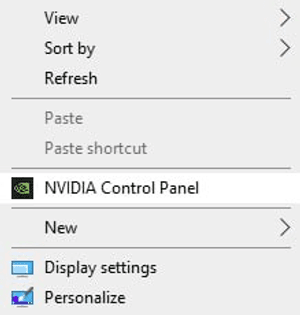
- Choose “Manage 3D Settings.”
- Go to “Program Settings.”
Choose “CS2.exe.”
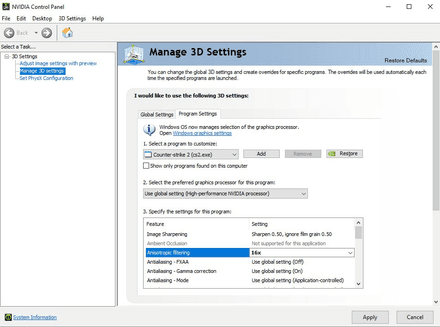


Now you’ll be able to change the CS2 Nvidia control panel settings based on your needs.
Low Latency Mode
Reduces input delay, improving precision and reaction speed in competitive gameplay. Set it to Ultra for CS2 to ensure frames are rendered just before being displayed, enhancing responsiveness.
Power Management Mode
Choose “Prefer Maximum Performance” to maintain stable GPU clock speeds. These CS Nvidia settings prevent automatic power throttling and keep FPS consistent throughout long sessions, especially on high-refresh monitors.
Texture Filtering Quality
Set texture filtering quality to “High Performance.” It prioritizes frame rendering speed over visual detail, improving CS2 performance and providing smoother gameplay without noticeable texture degradation in competitive environments.
Threaded Optimization
Enable this option to let CS2 utilize multiple CPU cores efficiently. It reduces micro-stuttering, increases frame consistency, and helps maintain smooth gameplay during intense visual effects like smokes or explosions.
Vertical Sync (V-Sync)
Disable V-sync to remove input lag and maintain real-time control. While it prevents screen tearing, it increases latency, making it unsuitable for competitive CS2 matches where reaction speed matters.
Max Frame Rate
Disable this option to let your PC deliver maximum FPS without artificial limitations. While your GPU may overheat without proper cooling, you’ll get maximum performance without screen tearing.
Some players prefer enabling this option in their CS2 Nvidia graphics settings. They set the max frame rate slightly below their monitor’s refresh rate to prevent GPU overheating. Experiment with these settings to see what works best for your setup.
Anisotropic Filtering
Set anisotropic filtering to 16x for sharper distant textures. It provides better clarity on long-range maps like Mirage or Dust2 with minimal FPS impact, improving visibility and overall game readability.
Image Sharpening
Activate image sharpening between 0.3-0.5 intensity and enable Ignore Film Grain. This enhances edge clarity and improves visibility in darker CS2 scenes without distorting textures or causing oversharpening artifacts.
Preferred Refresh Rate
CS2 Nvidia optimization requires you to set the preferred refresh rate to “Highest Available” to guarantee maximum display responsiveness. This ensures CS2 runs at your monitor’s native refresh rate, minimizing input delay and maximizing responsiveness.
Triple Buffering
Disable triple buffering, as it adds latency unless V-Sync is active. Turning it off helps reduce the delay between mouse movement and on-screen response, making CS2 more responsive in competitive play.
To make sure your system is balanced end-to-end, check out how to optimize your PC for CS2 for tips beyond Nvidia settings.
Best Nvidia GeForce Experience Settings for CS2
Now that you’ve set the control panel Nvidia settings for CS 2, let’s fine-tune the best choices in Nvidia GeForce Experience.
Enable Nvidia Reflex and Highlights
Enable NVIDIA Reflex in CS2’s video settings to minimize system latency, and use the GeForce Experience NVIDIA Highlights feature to automatically record your best moments. Reflex optimizes the GPU/CPU rendering pipeline to minimize input latency, significantly improving responsiveness in fast-paced CS2 matches.
Optimal Game Settings with GeForce Experience
Use the Optimize option in GeForce Experience to apply Nvidia’s recommended CS2 settings for your hardware. It provides a balanced baseline for visuals and performance, which you can later tweak manually for competitive preferences.
Driver Updates
Keep your drivers updated through GeForce Experience to ensure stability and optimal CS2 performance. Updated drivers enhance compatibility, stability, and FPS, often including patches for new maps or engine improvements that boost gameplay smoothness.
Performance Overlay
Activate Performance Overlay from GeForce Experience to monitor real-time FPS, GPU load, and temperatures while playing CS2. This helps you identify potential bottlenecks and confirm that optimizations are actually improving your performance.
Nvidia Freestyle Filters
Access Nvidia Freestyle in-game with Alt + F3 to adjust brightness, contrast, and sharpening. Subtle tweaks improve enemy visibility on darker CS2 maps like Inferno or Nuke without hurting FPS.
For more granular control over performance while playing, see our CS2 FPS commands to tweak your in-game feedback.
Nvidia Graphics Settings Inside CS2
Now, let’s take a look at the CS:GO Nvidia settings inside the game.
Display Mode
Set Display Mode to Fullscreen to give CS2 complete control over the GPU. This reduces input latency and background interruptions, ensuring the system prioritizes frame rendering for more consistent performance.
Resolution and Aspect Ratio
Use 1920×1080 (16:9) for clarity or 1280×960 (4:3 stretched) for larger player models. Many professional players often favor 4:3 stretched because it increases opponent visibility while slightly narrowing peripheral vision.
Refresh Rate
Always set the refresh rate to the highest available, matching your monitor’s capability (144 Hz, 165 Hz, or 240 Hz). Using a lower rate increases input lag and makes aiming less precise.
Global Shadow Quality
Set Global Shadow Quality to Low. This reduces unnecessary rendering load and improves FPS stability while maintaining shadows visible enough to track enemies behind corners or near cover.
Model / Texture Detail
Choose Low or Medium for Model and Texture Detail. These settings boost FPS while maintaining clear visibility of player models and weapon skins, ensuring smooth movement without distracting you.
Texture Streaming
Disable texture streaming if your GPUs has 6 GB VRAM for smoother gameplay and faster texture loading. Enable it only on lower-end systems to prevent lag spikes or frame drops.
Effect Detail & Shader Detail
Set both Effect Detail and Shader Detail to Low. This reduces rendering stress from explosions, smokes, and lighting effects. You’ll get better FPS consistency.
Multisampling Anti-Aliasing (MSAA)
Turn MSAA off or set it to 2x for minimal aliasing and better performance. Higher levels, like 8x, significantly reduce FPS with little visible improvement.
FXAA Anti-Aliasing
Turn off FXAA to preserve image clarity. While it smooths edges, it also blurs textures and player outlines, reducing sharpness and making enemy detection harder on maps with darker lighting.
Ambient Occlusion
Disable ambient occlusion to remove unnecessary soft shadows that strain GPU resources. It enhances realism but doesn’t aid gameplay visibility, so disabling it improves FPS and responsiveness.
Boost Player Contrast
Enable “Boost Player Contrast” to enhance the difference between characters and the environment. This makes enemies more distinguishable, especially in shaded or dark map areas.
V-Sync and Motion Blur
Disable V-Sync and Motion Blur. These features increase input delay and create visual distractions during movement, affecting reaction time and overall precision.
Nvidia Reflex Low Latency
Set Nvidia Reflex Low Latency to On + Boost. This minimizes system latency, ensuring faster response from mouse movement to on-screen action, which is critical during intense firefights.
Brightness and Color Settings
Adjust brightness to around 110–120% and digital vibrance to 60–70%. These adjustments make maps clearer and improve enemy detection.
Frame Rate Limit
Set an in-game FPS limit equal to your monitor’s refresh rate. Combine it with the Nvidia Control Panel’s limit for balanced frame pacing.
If you want to refine your connection and responsiveness, our CS2 interp settings and commands guide covers it in detail.
6 Common Mistakes to Avoid when Setting CS2
After choosing the right Nvidia settings for CS:GO, players may still experience certain issues for multiple reasons. Let’s take a look at the most common mistakes they make.
Overusing High Graphics Settings
Many players assume that using ultra graphics settings automatically improves gameplay. That’s a costly mistake in Counter-Strike 2. Overusing settings like ultra shadows, high shaders, and 8x MSAA increases input latency and creates unnecessary visual clutter.
In competitive games, your priority should be performance and clarity, not aesthetics. Lower settings allow for faster reaction times, smoother frame pacing, and reduced heat generation on your GPU. Keep your visuals simple and crisp. The fewer distractions, the faster your response.
You can learn more about the graphics configs used by pro players here.
Ignoring Driver Updates
Outdated Nvidia drivers are one of the biggest silent killers of performance. They often cause FPS instability, rendering glitches, and poor optimization for newly released CS2 patches.
Updating drivers regularly through GeForce Experience ensures compatibility with the latest game version and keeps your GPU running efficiently:
- Open “GeForce Experience” from the Start menu or taskbar.
- Click the “Drivers” tab at the top.
- Press “Check for updates” to see if a new version is available.
- Choose “Express Installation” (recommended) or “Custom Installation” for advanced options.
- Restart your PC after the installation completes to apply changes.
Nvidia frequently releases driver hotfixes that address stuttering, latency spikes, and shader compilation issues specific to CS2. Ignoring them means leaving free performance improvements on the table. Schedule updates monthly or enable automatic notifications to stay ahead of performance drops.
Using Wrong Scaling Options
Many players unknowingly leave scaling to their monitor, introducing input delay that can cost them milliseconds in clutches. You should set GPU scaling inside the Nvidia Control Panel under Adjust Desktop Size and Position. This forces your graphics card to handle the scaling, resulting in lower latency and more precise mouse control.
For players using stretched resolutions like 1280×960, GPU scaling ensures consistent image rendering and smoother transitions between frames. Always verify this after driver updates, as settings may reset to default automatically.
Forgetting to Disable Background Apps
Even the best Nvidia settings for CS2 can’t compensate for background processes that drain your resources. Apps like Chrome, Discord overlays, OBS, and Windows updates can quietly consume GPU and CPU bandwidth, leading to random stutters or frame drops during matches.
Before launching CS2, use the Task Manager to close unnecessary processes and disable overlays you don’t actively use. This frees up VRAM and system memory, stabilizing your FPS.
For streamers, use separate capture devices or NVENC encoding to reduce the load on your main GPU. A clean system creates a consistent game experience.
Not Cleaning Old Configurations
If you just upgraded from CS:GO or installed CS2 on a new PC, your old settings may conflict with the current files. Players also often experience issues because of the enabled Steam Cloud.
You can disable it by following these steps:
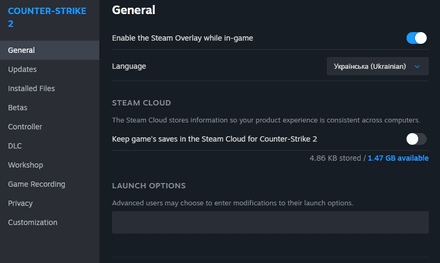
- Right-click CS2 and choose Properties.
Under Steam Cloud, uncheck “Keep game saves in the Steam Cloud for Counter-Strike 2.”
- Delete files in C:\Program Files (x86)\Steam\userdata\<account>\730.
- Launch and close CS2.
- Re-enable Steam Cloud.
- In CS2’s Steam page, click File conflict under Cloud status.
- Choose Local Save and press Continue.

This should minimize conflicts with old settings.
Overclocking Without Testing
Overclocking your GPU can bring slight FPS gains. However, without stability tests, it may cause random crashes and stuttering. Use tools like MSI Afterburner for safe overclocking. Also, never exceed +100 MHz core or +500 MHz memory without testing.
Summary
These Nvidia settings for CS2 will help you improve your gaming experience. You’ll gain better opportunities to react to enemy movements, securing easy wins for your team.