How to Enable Auto-Fire in Fortnite
Contents
- What Auto-Fire Is and How It Works in Fortnite
- Where Auto-Fire Is Available (Mobile, Console, PC)
- How to Turn On Auto-Fire in Fortnite on Mobile
- Controller and PC Settings: Aim Assist vs Auto-Fire
- Best Settings and Beginner Tips for Playing With Auto-Fire
- How to Turn Off Auto Fire in Fortnite
- Troubleshooting Auto-Fire Issues
- Conclusion

Auto Fire is a special feature developed by Epic Games for playing Fortnite on mobile devices, but many newcomers ignore it because they don’t even know it exists. So, if you want to discover how to enable Auto-Fire in Fortnite, our guide is here for you! Moreover, here you’ll find out whether this feature is available for PC and console players, what alternatives there are, and beginner tips to improve your aim.
What Auto-Fire Is and How It Works in Fortnite
Auto Fire in Fortnite is a special gameplay feature that automatically fires the player’s weapon once their crosshair is on an enemy. Shooting will stop immediately if you lose aim. This feature is a life-saver on mobile devices, since it removes the need to press the fire button while aiming, making the gameplay more comfortable. With how convenient the feature is, many players wonder how to activate Auto-Fire in Fortnite.
Where Auto-Fire Is Available (Mobile, Console, PC)
So, are you one of those asking how to get Auto-Fire in Fortnite? First, make sure your device supports this feature. Although Fortnite is a cross-platform game, there are still some gameplay differences between smartphones, consoles, and PCs:
- Mobile (Android or iOS): This is the only platform that supports the automatic fire mode, and you can enable or disable it in the game settings.
- Console (PS4, PS5, Xbox, or Nintendo Switch): Although there is no Auto-Fire option, players can still improve their accuracy with aim assist adjustments.
- PC: Just like console players, you can’t turn on Auto-Fire on a PC, but can improve your performance by configuring the shooting settings or connecting a controller.
Note that the situation may change in future updates. For example, in Chapter 6, Epic Games experimented with the Auto-Fire feature and made it available across all platforms to gather community feedback. So, there is a strong chance that they’ll enable it again or develop an alternative for consoles and PCs.
On PC, knowing the Fortnite PC default controls helps you stay competitive without Auto-Fire enabled.
How to Turn On Auto-Fire in Fortnite on Mobile
So, you’re a lucky owner of a powerful mobile device, and you want to know how to turn on Auto-Fire in Fortnite? Then, you’ll be glad to hear that this game-changing feature is available on both Android and IOS. We’ve prepared detailed instructions for both platforms, so just follow them step by step.
Enabling Auto-Fire on iPhone (iOS)
First, let’s find out how to turn on Auto-Fire in Fortnite on mobile devices that run on iOS. Where is Auto-Fire in the Fortnite settings? Here is what you need to do to locate it:
Press your profile icon in the upper right corner and open the game’s settings.
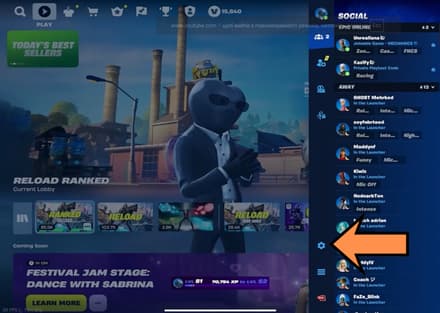
Open the “Touch and Motion” tab.
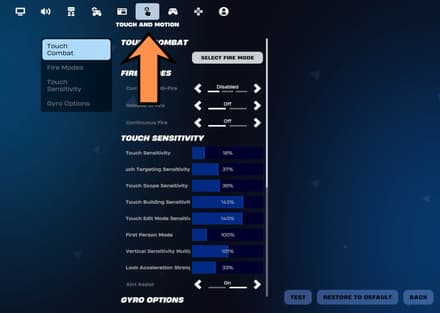
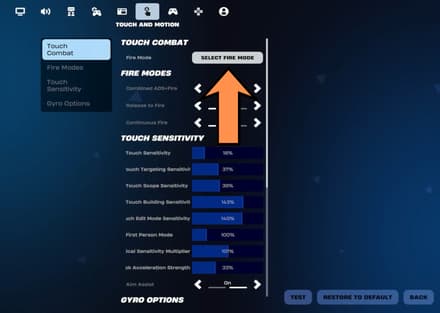
You’ll see Find the “Select Fire Mode” button under the “Touch Combat” tab.
The game will offer you three modes to choose from: “Tap Anywhere”, “Auto Fire”, and “Dedicated Button”. Simply select the second option and press “Confirm”.
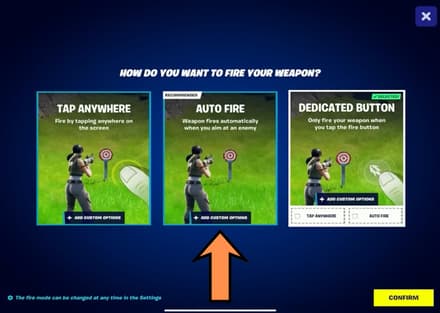


Alternatively, iPhone users can combine several fire modes into one. For example, you can choose the Auto-Fire option but still add a dedicated fire button.
Enabling Auto-Fire on Android
Now, let’s find out how to use Autofire in Fortnite on Android devices. It’s simple: the steps are almost exactly the same as for iPhone users, but some button names in the settings may differ slightly (e.g., “Apply” instead of “Confirm”).
This feature is available only on Android and iOS, as it’s designed to overcome the inherent limitations of mobile touch controls. Due to the small screen size and often overwhelming HUD layout, it’s indeed more challenging to aim and fire when playing on a mobile phone. Thus, Epic Games decided to make life a bit easier for mobile players to give them a fighting chance against their PC and Console counterparts.
Controller and PC Settings: Aim Assist vs Auto-Fire
But what if you want to know how to turn on Auto-Fire in Fortnite on PC or your favorite console? Sadly, this option isn’t available unless you’re ready to use third-party cheats. However, we strongly advise against doing so if you don’t want to get banned by Epic Games.
Luckily, there are alternative options for both keyboard-and-mouse and joystick fighters. If you own any modern console, you can get an effect similar to Fortnite Auto-Fire controller settings via aim assist:
Find and open the “Controller” settings option.
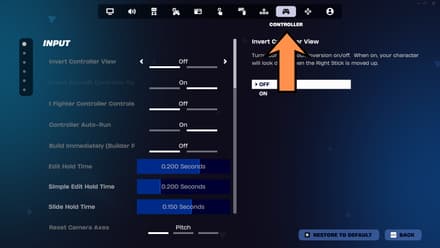
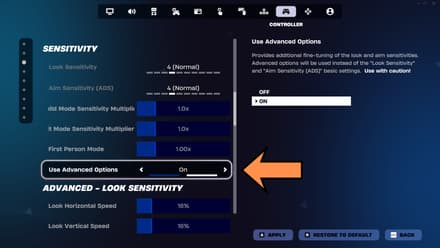
Go to the “Sensitivity” tab and turn on the “Use Advanced Options” slider.
Scroll down until you find the Aim Assist adjustments. Experiment with the Precision Strength and Tracking Strength to find the most comfortable setup.
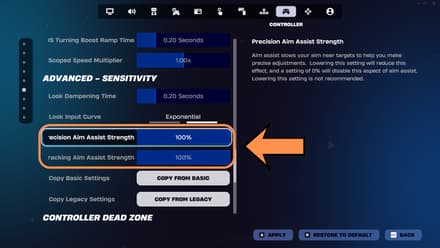
- Don’t forget to press “Apply” to save the settings.


Although Aim Assist isn’t the same as the Auto-Fire mode, it can still significantly boost your performance if you play with a controller (even on PC). Similar to Auto-Fire, this feature was developed specifically to allow the console players to compete with the far more precise mouse & keyboard setup. Of course, it won’t do everything for you, but it will simplify tracking and hitting targets, especially in dynamic gunfights.
Unfortunately, if you are a PC gamer relying on your keyboard and mouse, you don’t get access to any aim-improving tricks. However, unlike the console and mobile players, you can fine-tune your settings, which can make you pretty much undefeatable, especially in long-range combat. Both Aim Assist and Auto-Fire may not work properly if an enemy is too far, so if you set custom controls, adjust mouse sensitivity, and train hard, you’ll still get an upper hand.
Learning how to have better aim in Fortnite PC can make up for the lack of Auto-Fire when firing weapons.
Aim Assist vs Auto-Fire
As you can see, both mobile and console players get features that make landing shots easier. However, which one offers more advantages? We’ve prepared a short Aim Assist vs Auto-Fire comparison to finally find out the answer.
| Aim Assist | Auto-Fire |
Best For | Mid-range gunfights | Close-range and mid-range combat, clutches |
Who can use | Controller and mobile players | Only mobile players |
Reason to use | Simplifies aiming | Simplifies shooting |
Pros | - Improves accuracy - Customizable adjustments - Available on both platforms | - Reduces the inevitable delay between the player’s intent to shoot and the shot itself - Useful feature for players with limited mobility |
Cons | - Can let you down when faced with several targets | - Available only for mobile devices - You’ll have less control over your shots |
As you can see, mobile gamers can use both Aim Assist and Auto-Fire features. However, it doesn’t seem to grant them a significant advantage over other players, especially in long-range combat.
Best Settings and Beginner Tips for Playing With Auto-Fire
With auto fire enabled, you can compete with the players using powerful PCs and modern consoles while playing from a tiny smartphone. But first, you need to adjust the Auto Fire setting in Fortnite. Here’s what we suggest you do:
- Add the “Dedicated Button” option to gain more control over your shots.
- Disable “Fire on Release” and “Continuous Fire.”
- Turn off the combined ADS+Fire feature.
Some pro players argue against using Auto-Fire mode, even on mobile devices. Nonetheless, if you don’t want to enter combat without this feature, here are some beginner tips to help you get the most out of it:
- Master peeking in close-range combat: Learn how to quickly target the enemy during box fights or other close-quarters encounters. With Auto Fire, all you need to do is target the enemy player and hide before they can retaliate.
- Never hesitate to enable Aim Assist: Luckily, you can use both Aim Assist and Auto Fire, which makes gaming on mobile devices far more comfortable.
- Track your crosshair: Many new players often swipe wildly during skirmishes, ruining their aim. If you do so, there is a strong chance that Auto Fire won’t work correctly.
- Stay in effective range: Auto Fire is next to useless in long-range combat, as there is a strong chance it simply won’t work (unless you use a sniper rifle). So, it’s a good idea to get as close as possible to the enemy before shooting.
- Never stand still: Use what advantages you have over the console and PC players, for they’re surely doing the same! Since you don’t need to manually tap the Shoot button, you can focus solely on aiming and avoiding enemy fire. Run, jump, and slide while still keeping your crosshair where it needs to be.
For players experimenting with different guns and mechanics, you may also be interested in how to get the Supercharge Shotgun in 1v1 with every gun for creative mode challenges.
How to Turn Off Auto Fire in Fortnite
Since you already know where to find Auto Fire settings on your device, we won’t repeat the instructions here. Instead of Auto Fire mode, you can opt for either of the two alternatives:
- Tap Anywhere: You’ll start firing your gun once you tap anywhere on the screen. Not the worst option, but it often causes accidental shots.
- Dedicated Button: Creates a special button on the HUD layout, which you must press to start shooting. If you want to get full control over your weapons, this is your choice.
Why would you turn off Auto Fire, leaving yourself at a disadvantage compared to players on other platforms? Well, here are several reasons:
- Advanced control: Imagine hiding in a bush and preparing to ambush an enemy once they get close… but your gun shoots too early, so you lose the element of surprise. Disabling Auto Fire will prevent such awkward situations.
- Moving to other platforms: You can try playing without Auto Fire if you plan to switch to a console or a PS soon, as you won’t be able to use this feature anymore.
- Getting more competitive: Don’t let an enemy take you by surprise in long-range combat, during ambushes, or in multi-player gunfights. When you control your shooting manually, you can be sure of every bullet fired.
Troubleshooting Auto-Fire Issues
Even once you’ve learned how to turn Auto-Fire on in Fortnite, you still may face some frustrating technical issues. Here are the most common problems and how to fix them:
- Auto-Fire option is missing from your settings: First, make sure you are using the official, up-to-date version of Fortnite. If you still can’t find this option, check the changelog of the latest update (during some Chapters, the feature was relocated from the Touch and Motion settings to the Game settings).
- Auto-Fire triggering issues: The enemy is likely too far; you should try to get closer next time or opt for an alternative fire control mode.
- Weird behavior: Does your Auto Fire seem slow and unresponsive? This is likely due to a slow or unstable internet connection on your end. Does it fire at the wrong targets? Lower the Aim Assist strength, as Auto Fire has nothing to do with aiming.
Conclusion
Now you know how to turn on Auto-Shoot in Fortnite and when to use this feature. This mechanic allows mobile, console, and PC players to compete on a relatively equal footing. If you’re playing on a phone, Auto Fire will surely work wonders for you.