CS2 Console Commands
FOV & Viewmodel
Adjust how much your viewmodel and gun barrel moves back towards you when you are running.
CS:GO bob version command.
Adjust how much the viewmodel and gun will move to the side when running.
Adjust how much your viewmodel and gun barrel moves up and down when moving forward.
Adjust how much your viewmodel bobs when you run.
Adjust how much your viewmodel and weapon moves/bobs up when running.
CS:GO brushfastpath command.
The camera follow viewmodel command in CS:GO adjusts how the camera is following the index of the bone.
Change radar size.
0 = The radar does not focus on the player.1 = The radar is centered on the player.
Change the icon size of the radar.
0 = Static radar.1 = The radar rotates following the player’s camera.
Change the radar zoom.
0 = Round radar.1 = Square radar when showing the scores.
With this CS:GO viewmodel command you can choose the side of the weapon you are holding. 0=weapon in the left hand and 1=weapon in the right hand.
0 = No color.1 = Different colors.2 = Colors and letter.
Adjust if your head moves up and down when you are running. Can't be adjusted for ranked matchmaking. Only for the SV cheat modes.
Setup how much your viewmodel moves to the left when shooting accuracy increases.
Setup how much your viewmodel moves to the right when shooting accuracy increases.
Set your Field of View, also called VOW to the specified number, you can set it to any value but requires sv_cheats to be enabled.
The fov debug command will will set your FOV to the specified value, provided sv_cheats is set to 1. It has no limitation.
Commands List
Why are Console Commands Needed in CS2?
Console commands in CS2 allow players to instantly activate changes or settings in the game. All you need to do is open the console, type the command you need, and press the Enter key. The whole process takes about as long as it takes to read this sentence.
However, despite the presence of 3,057 CS2 commands available through the console, most important settings can already be adjusted through the game’s main menu. All basic aspects needed for comfortable gameplay — Video, Audio, Game, Keyboard/Mouse, Controller — can be configured without touching the console. Still, the console is extremely useful if you want to copy and paste someone else’s entire settings list instead of adjusting every option manually.
There is also a large set of commands that are essential for training. These include commands for adding bots and controlling them, activating infinite armor, adjusting grenade trajectories, and more. Alternatively, you can use them just for fun with friends when you are tired of competitive matches and want to try something chaotic.
Including all CS2 console commands directly in the main settings menu would waste a huge amount of space and make the interface less user-friendly. For this reason, the developers kept these options available but effectively "hid" them inside the console. Advanced players often know around a hundred commands from the full CS2 commands list, but even that only scratches the surface. To make things easier, we’ve grouped the commands into categories so you can quickly find the one you need.
How to Open and Use the CS2 Console
In CS2 all commands are activated through the console. But how do you open it?
When in CS2:
Open the game and click the gear icon in the main menu.
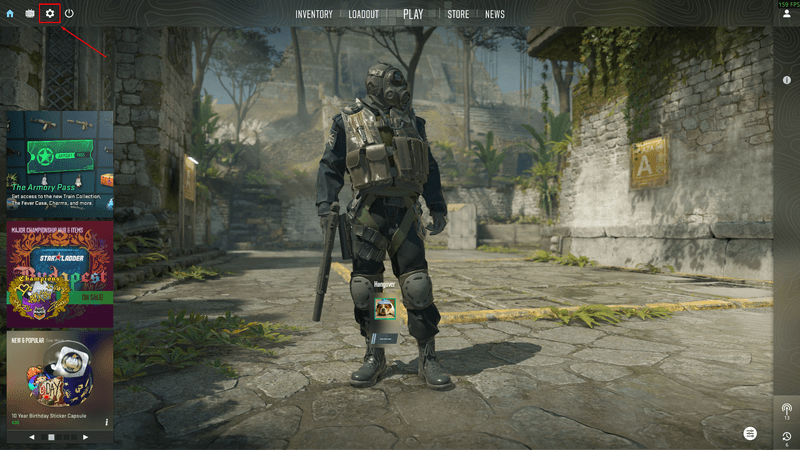
- Go to the Game tab.
Find Enable/Allow Developer Console and set it to Yes/Enabled.
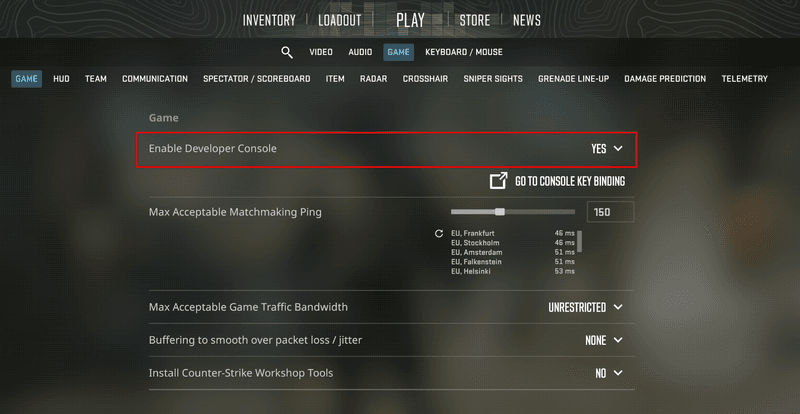
In-game, press the ` or the ~ key (usually the tilde key) to open the console.
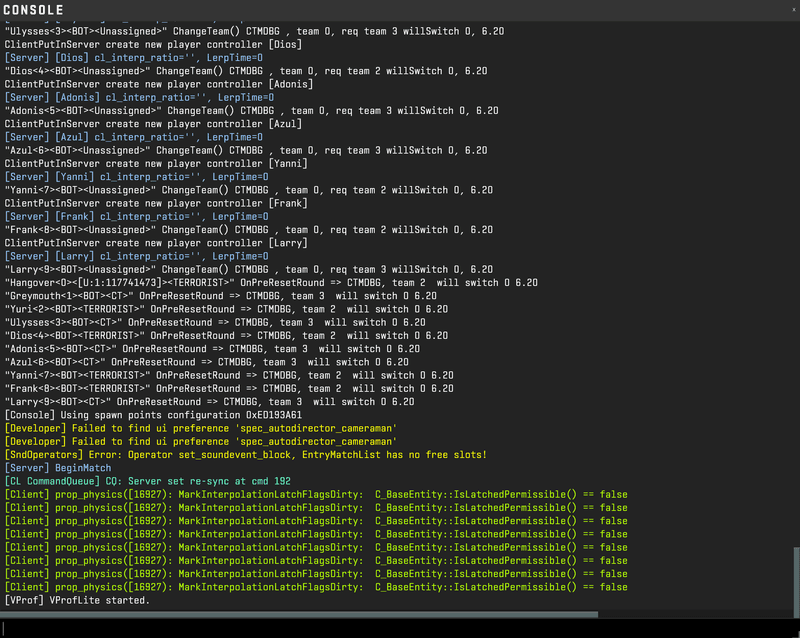


Boom! You are ready to go.
Now, whenever you open CS2 all console commands can be entered from this window that appears after pressing the tilde key. So go ahead and explore the CS2 console commands list we’ve prepared for you.
What Commands Cannot Be Used in Competitive Modes
With the variety of Counter-Strike 2 console commands, most of them function as pre-game configuration settings. Essentially, all CS2 commands that mirror configuration settings can be used at any time.
However, a large group of commands is available only during training sessions. To activate them, you must type sv_cheats 1 in the console. This unlocks commands that are not allowed in competitive modes. These include features such as flying across the map, god mode, infinite ammo, closest spawn to test timings, grenade trajectory previews, and many more, all of which can be extremely useful for practice.
Another group of commands cannot be used in competitive matches because they modify local server settings. For example, you cannot change freeze time, round time, team sizes, or starting money while playing official matchmaking games.
FAQ
Some CS2 console commands may not work because they were removed, renamed, restricted to specific modes, or require special permissions, such as cheat-enabled servers. In some cases, the issue may simply be a typing mistake or an incorrect parameter.
The classic FPS command is cl_showfps 1, which displays a simple frame rate counter on your screen. Another option is cq_netgraph 1, which shows additional performance and network statistics, though it functions more as a HUD-style stat display rather than a basic FPS counter. For a more detailed dashboard, Valve also provides the Source2 Telemetry HUD, which can be enabled in the Game settings. There, you can choose which performance metrics you want to display on your screen.
To activate the console in CS2, follow this procedure: Launch Game → Settings → Game → Enable Developer Console → Yes. Then, press the “~” (tilde) key to open the console and enter commands.
In most cases, you cancel a command by entering the opposite value. Many commands use ‘1’ for activation and ‘0’ for deactivation. For example, sv_cheats 1 enables 'cheat' commands, while sv_cheats 0 disables them. In other cases, you may need to use an opposite command, such as bot_add/bot_kick.
The most commonly used commands are related to adjusting game volume levels, mouse sensitivity, and key binds. Many players modify these settings frequently, sometimes several times within a single match.
Console commands do not directly improve your skill, but they can definitely make the gameplay experience smoother and more comfortable. Optimizing your settings may help you react faster and perform better during matches.
Profilerr Tools
Pro Players’ Settings