Best CS2 Viewmodel Settings: Guide
Contents

Setting the best viewmodel in CS2 can help you find the ideal weapon and hand position on the screen for a better gaming experience. Although this setting may seem minor, it directly influences your comfort, visibility, and even aim consistency. In this guide, you’ll learn what a viewmodel is, how to change it, and which settings professional CS2 players use.
What Is the CS2 Viewmodel?
The CS2 viewmodel is an in-game setting that controls the position of the player’s gun and hands on the screen. Beginners often ignore this option without realizing that it can affect:
- Gaming comfort: Some players prefer fewer on-screen elements to reduce visual clutter.
- Field of View (FOV): The larger the weapon appears, the more space it occupies, limiting visibility.
- Aim and recoil control: Maintaining a consistent weapon position helps build muscle memory, improving recoil control and aim consistency even relying heavily on the crosshair.
How to Change the Viewmodel in CS2
Once you enter the game, you may wonder how to change the viewmodel in CS2. There are two ways to do this: through in-game settings or via the developer console. The first option is ideal if you prefer simplicity, while the second provides more precise control over customization.
Changing the Viewmodel via CS2 Settings
The easiest way to adjust the CS2 viewmodel settings is by choosing one of the built-in presets. Follow these steps:
Open the “Game” tab in the Settings and navigate to the “Item” section.
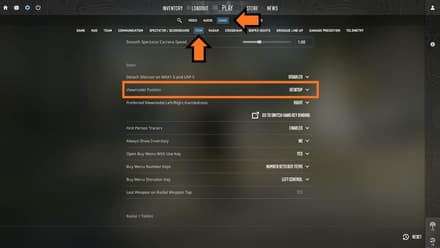
You can choose between two viewmodel settings:
- Classic: Replicates the old-school CS:GO viewmodel, placing the weapon slightly lower in the bottom-right corner.
- Desktop: The default option, which positions the weapon slightly higher in the bottom-right corner.

CS2 Viewmodel Commands (Console Method)
If the preset options do not meet your preferences and want to change the viewmodel in CS2 to get a personalized experience, you definitely need to opt for console commands. First, make sure the developer console is enabled:
Go to Settings, open the “Game” tab, and enable the developer console.
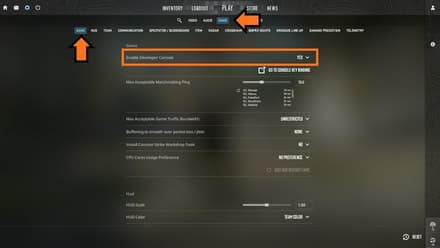
- In the Main Menu or during a match, press the “~” key to open it.

The console allows you to enter various commands, including those that modify the viewmodel. For instance, you can adjust the FOV with the help of viewmodel_fov or switch between presets with viewmodel_presetpos.
CS2 Viewmodel Command List
To fine-tune your viewmodel precisely, it’s important to understand all available CS2 viewmodel commands. Below is a complete list with descriptions and value ranges.
Console Command | Min/Max Value | Description |
| 54 to 68 | FOV command that changes the field of view |
| 1 or 2 | Allows you to choose one of the viewmodel presets — Desktop (1) and Classic (2) |
| -2.5 to 2.5 | Positions the character’s hands and weapon in the horizontal dimension |
| -2 to 2 | Positions the character’s hands and weapon in the vertical dimension |
| -2 to 2 | Adjusts the depth of the character’s hands and the weapon’s position |
| 0 or 1 | Enables left-hand viewmodel when set to 0 |
Best CS2 Viewmodel Settings for Visibility and Control
Of course, there are no best CS2 viewmodels, since each player’s preferences vary. However, you can still check some time-tested setups, and maybe one of them will perfectly match your gaming style.
Best CS2 Viewmodel (Universal Setup)
The table below lists viewmodel settings that should suit most CS2 players who opt for Competitive matches. They offer both great control over the weapon and good visibility.
Setting | Value |
| 68 |
| 2.5 |
| 1 |
| -1.5 |
In the game, these viewmodel settings look like this:

Viewmodel Position in CS2 for Maximum Visibility
If you prefer long-range combat and need maximum visibility to leave no enemy unspotted, you can opt for the settings from the table below. In this setup, the gun occupies less screen space, making it easier to control your surroundings. It also immerses you more in the game, enhancing the overall experience.
Setting | Value |
| 68 |
| 2.5 |
| -2 |
| -2 |
Once you apply these settings, your viewmodel will look like this:

For those with older hardware, checking out the best CS2 settings for low end PC can help you maintain playability while applying viewmodel tweaks.
How to Choose the Right CS2 Viewmodels
The choice of the ideal viewmodel position in CS2 directly depends on your personal preferences. Nevertheless, you can follow these recommendations and consider important factors to find a good balance:
- Playstyle: Minimal viewmodels are ideal for players who prefer assault rifles and AWPs.
- Maps: Open maps like Overpass benefit from more detailed viewmodels, while tight maps favor minimal setups.
- Monitor resolution: Small displays usually work best with centered viewmodels, whereas wide monitors suit minimal setups.
Pro Players’ CS2 Viewmodel Settings
Many players pair their personal viewmodel with setups inspired by CS2 pro settings for both comfort and performance. Learning from pros is undoubtedly one of the fastest ways to improve your performance. You can not only adopt their tactics but also copy their CS2 viewmodel settings.
ZywOo CS2 Viewmodel

ZywOo is known for his precise, adaptable playstyle, excelling at both AWPing and rifling. He prefers greater visibility to maintain better control of his surroundings.
Setting | Value |
| 68 |
| 2.5 |
| 0 |
| -1.5 |
NiKo CS2 Viewmodel

NiKo’s aggressive entry-fragging requires exceptional aim control. He slightly sacrifices visibility to gain an advantage in close-range engagements.
Setting | Value |
| 64 |
| 1 |
| 2 |
| -1.5 |
m0NESY CS2 Viewmodel
m0NESY perfectly combines an aggressive playstyle with precise AWPing. His settings prioritize aiming for long-range fights.
Setting | Value |
| 68 |
| 2.5 |
| 0 |
| -1.5 |
donk CS2 Viewmodel

donk is one of the most unpredictable entry-fraggers in modern CS2. If you prefer a calm playstyle, his aggressive approach may not suit you.
Setting | Value |
| 68 |
| 2.5 |
| 0 |
| -1.5 |
For users with dedicated GPUs, combining these viewmodel tweaks with optimal CS2 Nvidia settings can improve both visibility and framerate.
Should You Change the Default CS2 Viewmodel?
The default CS2 viewmodel offers a good balance, but is generally larger than competitive setups. However, if you play Counter-Strike casually and are not aiming to win the next Major, leaving your settings unchanged is perfectly fine.
Changing the positions of your hands and weapon may feel slightly distracting at first. Thus, it’s recommended to play a few matches to adapt to these adjustments.
Conclusion
We strongly recommend experimenting with different viewmodel settings until you find the one that works best for you. Play a few matches using the built-in presets, then fine-tune them with console commands to optimize your performance and ensure the best gaming experience.
FAQ
There is no single best option, as all settings depend on your personal preference.
CS2 professionals typically use a viewmodel_fov of 68, though this may vary.
Yes, the developer console allows full customization of the viewmodel.